How to Download
- Know your Part Number?
- Enter your Part Number in the "Search by Part Number" on the right
- Unsure of your Part Number?
- Use the search menu on the right to "Search by Diameter"
- Click the part number in the search table
- On the part page fill out the "Download a CAD Model" form in the bottom right
- Choose the material on the left and enter the CAD Height (wave springs only)
- Select "Direct Insert" to insert our component into a blank document as parametric features. This method requires an open CAD session and a free Java plug-in.
- Select "Download CAD" to download a 2D or 3D CAD document or graphic. A ZIP file containing the model and instructions will be generated for download. Certain formats require macros. See instructions or help for more information.
- Any questions or issues please contact cad@smalley.com
Example
- After Searching By Diameter or Searching By Part Number, you will be led to the Part Search Table. Select your part from the table by clicking the Part Number.

- After clicking the part number, you will be led to the to the part page. Fill out the "Download a CAD Model" form, with cookies enabled, you will only have to fill this form out one time.
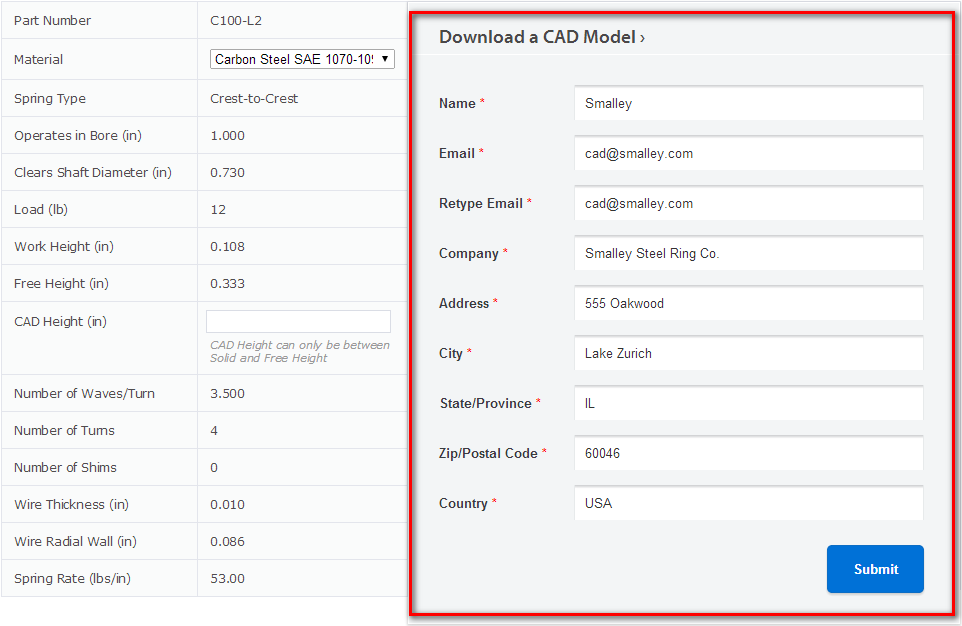
- After submitting the form, choose the material and select the CAD Height (wave springs only), then select your format and click "Direct Insert" or "Download CAD".
